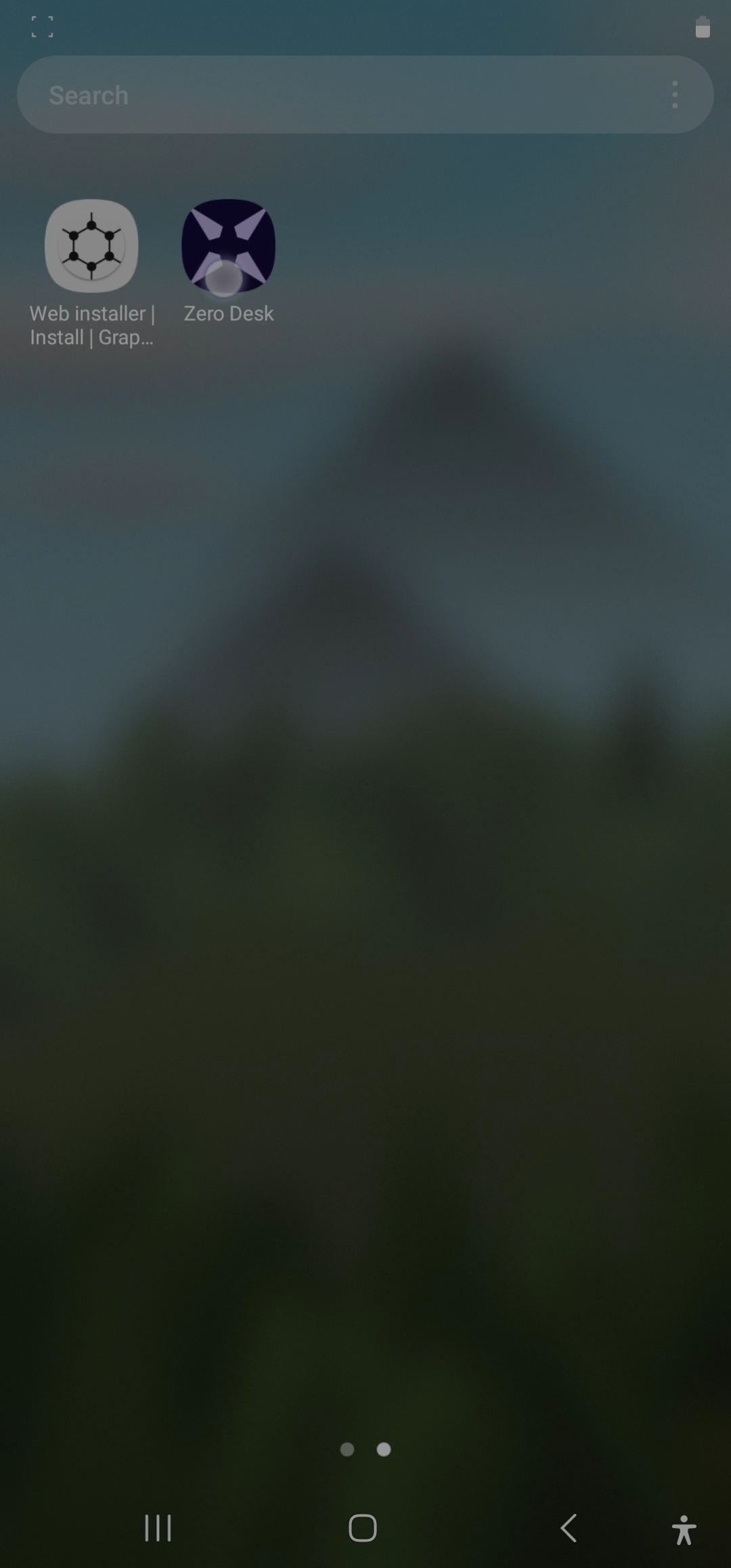
Installing Zero Desk
You only need to install Zero Desk once on your Android device. After that, it behaves just like any other app—from your home screen.
Zero Desk is currently only supported on Android. Apple devices do not yet support full PWA features like offline access.
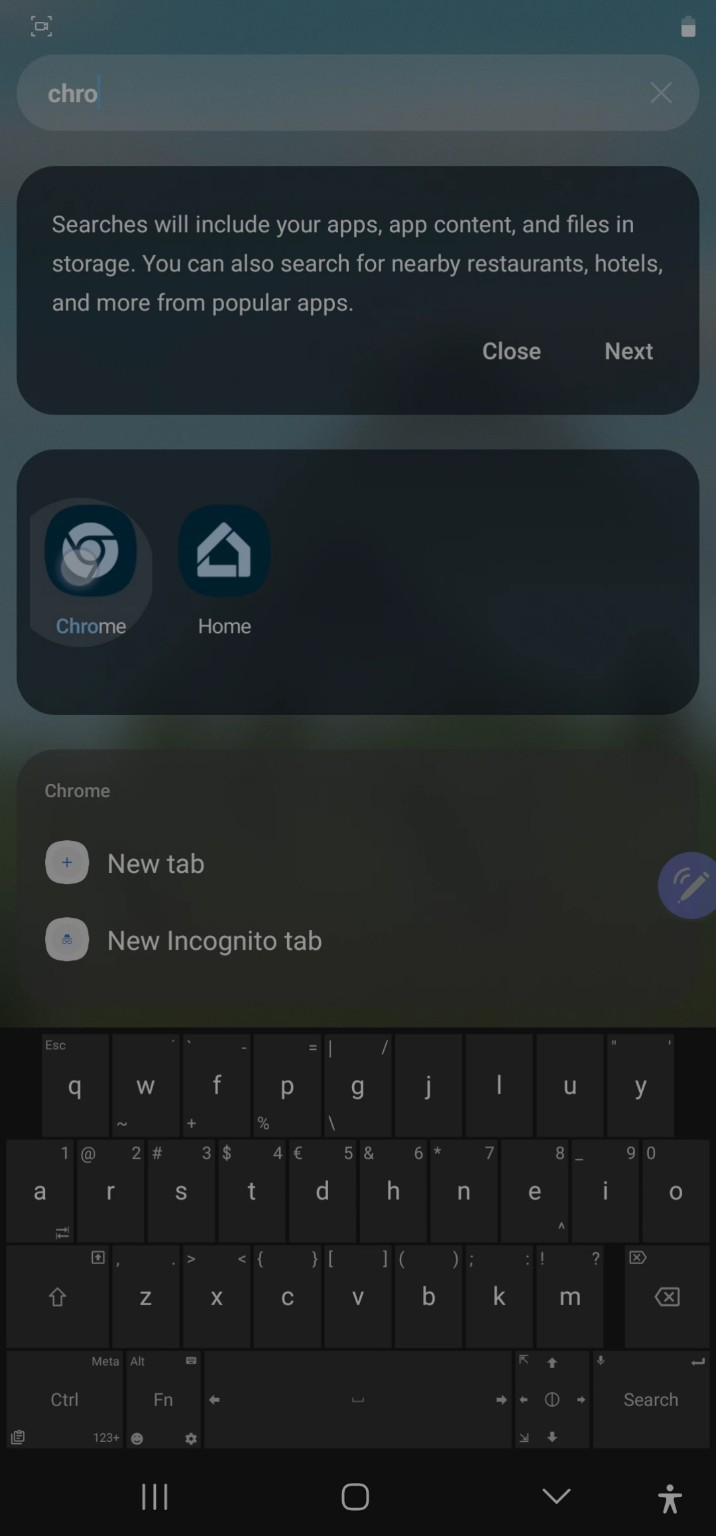
Step 1: Open Chrome
Find and Launch Chrome
Swipe up or tap the search bar on your device
Search for
Chromeand tap to open itIf you don’t have Chrome installed, download it from the Play Store first
Chrome is required for installing Zero Desk on Android.
Step 2: Visit the Web App
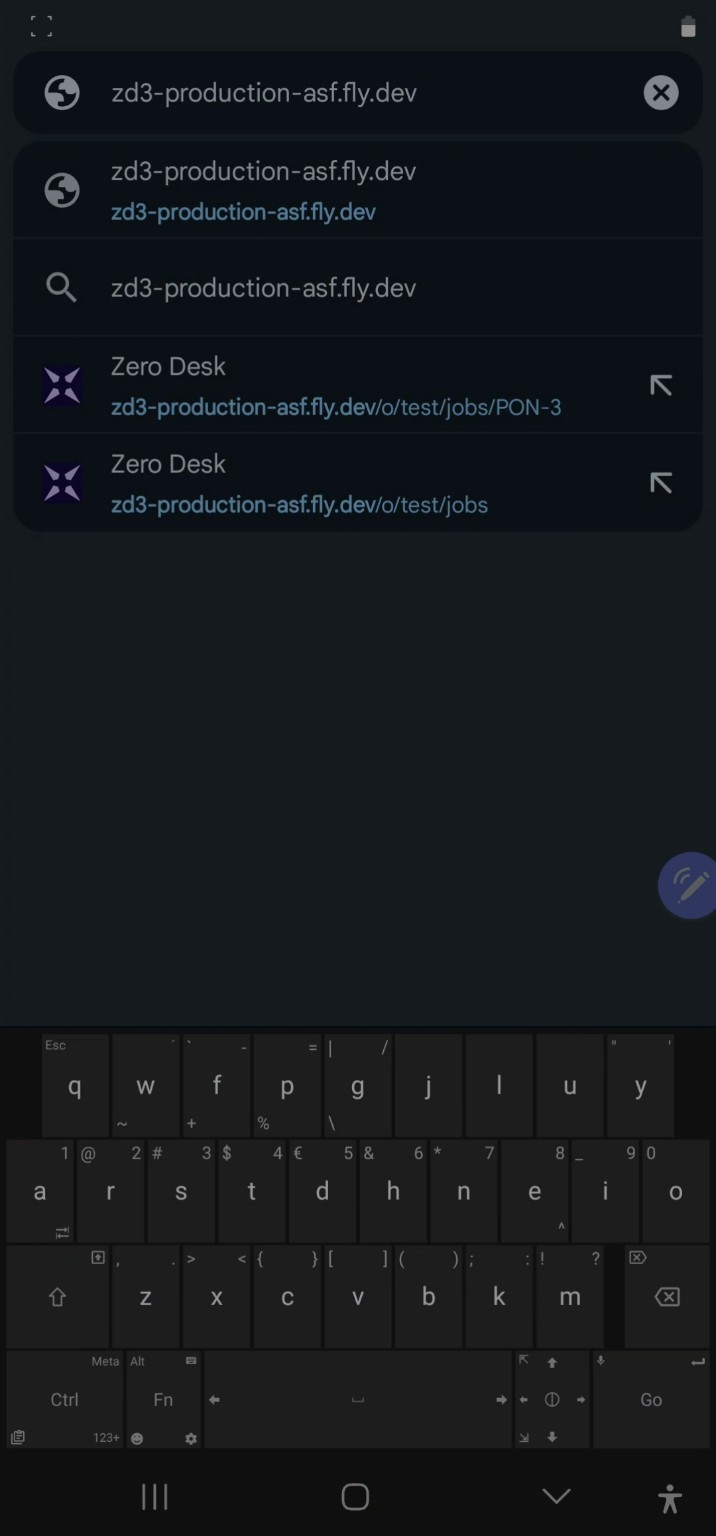
Enter the Zero Desk URL
- Tap the Chrome address bar
Type:
https://zerodesk.appTap Go or the suggested result
This will load Zero Desk just like a normal website.
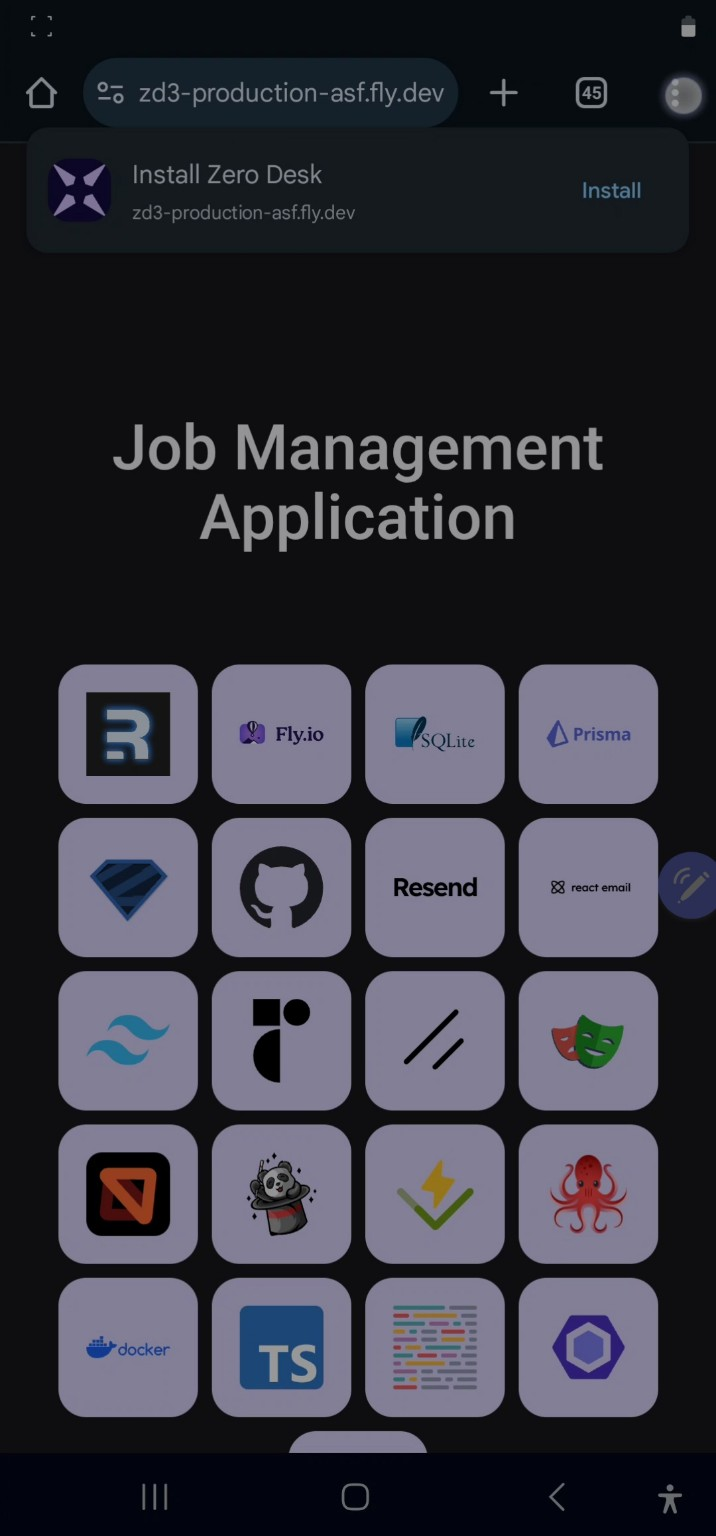
Step 3A: Use the Install Popup
Install Directly from the Popup
If a prompt says “Install Zero Desk”, tap Install
This is the fastest and easiest way to install Zero Desk.
Step 3B: Use the Chrome Menu
Add to Home Screen Manually
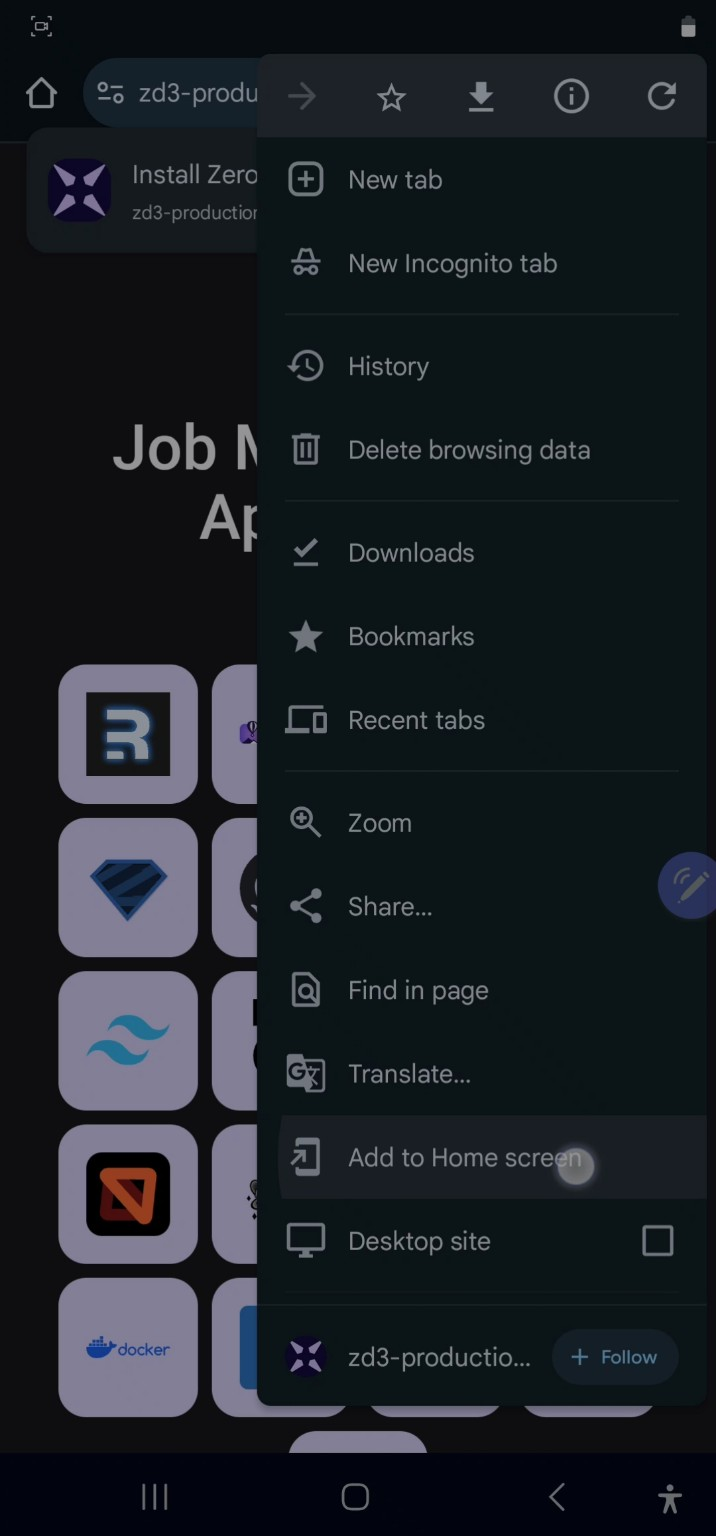
If no popup appears, tap the three-dot menu in Chrome
Select Add to Home screen
Tap Install when prompted
This gives you the same result: an app icon on your home screen.
Step 4: Confirm Installation
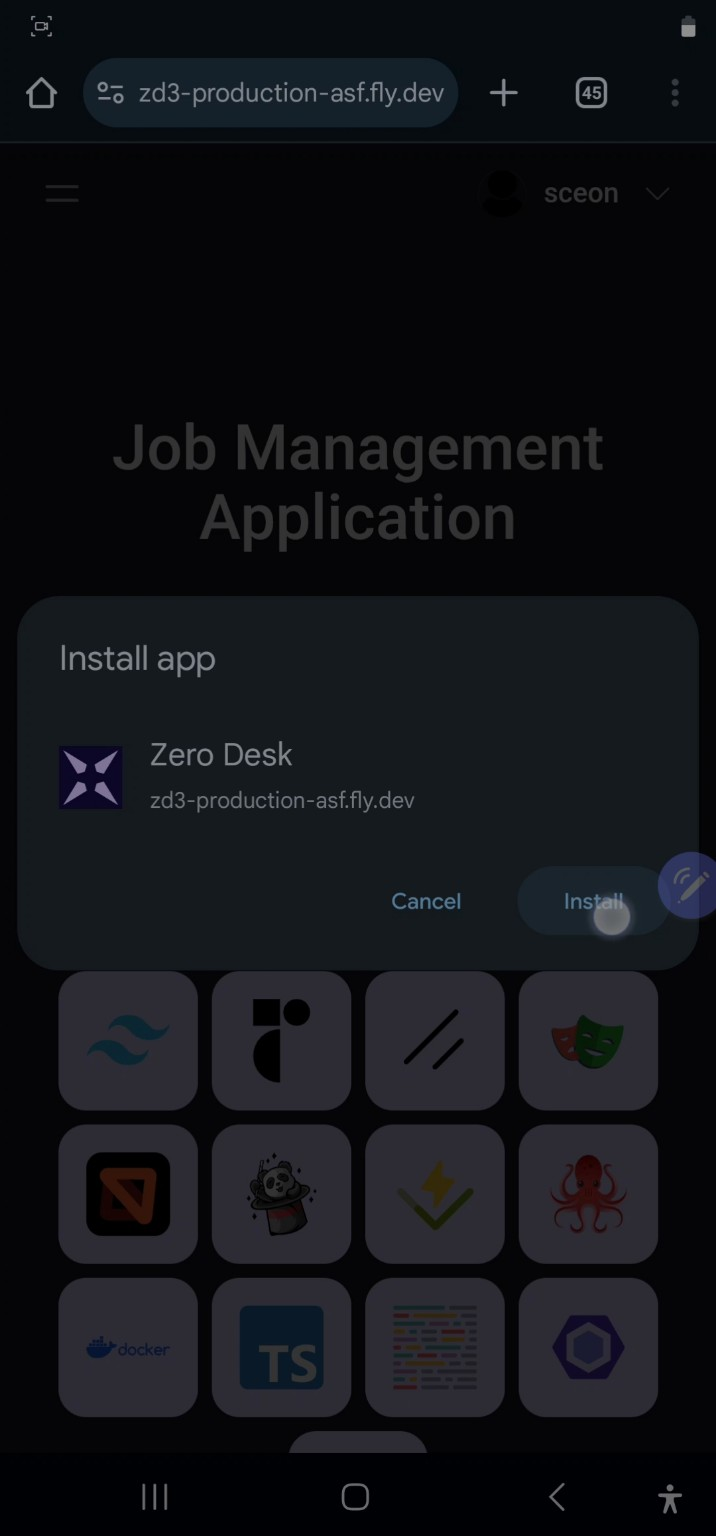
Complete the Installation
Tap Install again to confirm
Zero Desk will download and install in the background.
Step 5: Launch the App
Start Using Zero Desk
- Go to your home screen
Find the Zero Desk icon
- Tap it to launch the app in full-screen mode
Now you're ready to run Zero Desk—even without an internet connection!