Biologist Guide – Pond Management
From selecting your first job to logging updates and syncing offline — this guide walks you through the entire pond management workflow as a field biologist.
What You'll Learn
- How to start and edit jobs assigned to you
- How to use field estimates directly from mobile
- How to stay productive even without signal
Step 1: Start Your Job
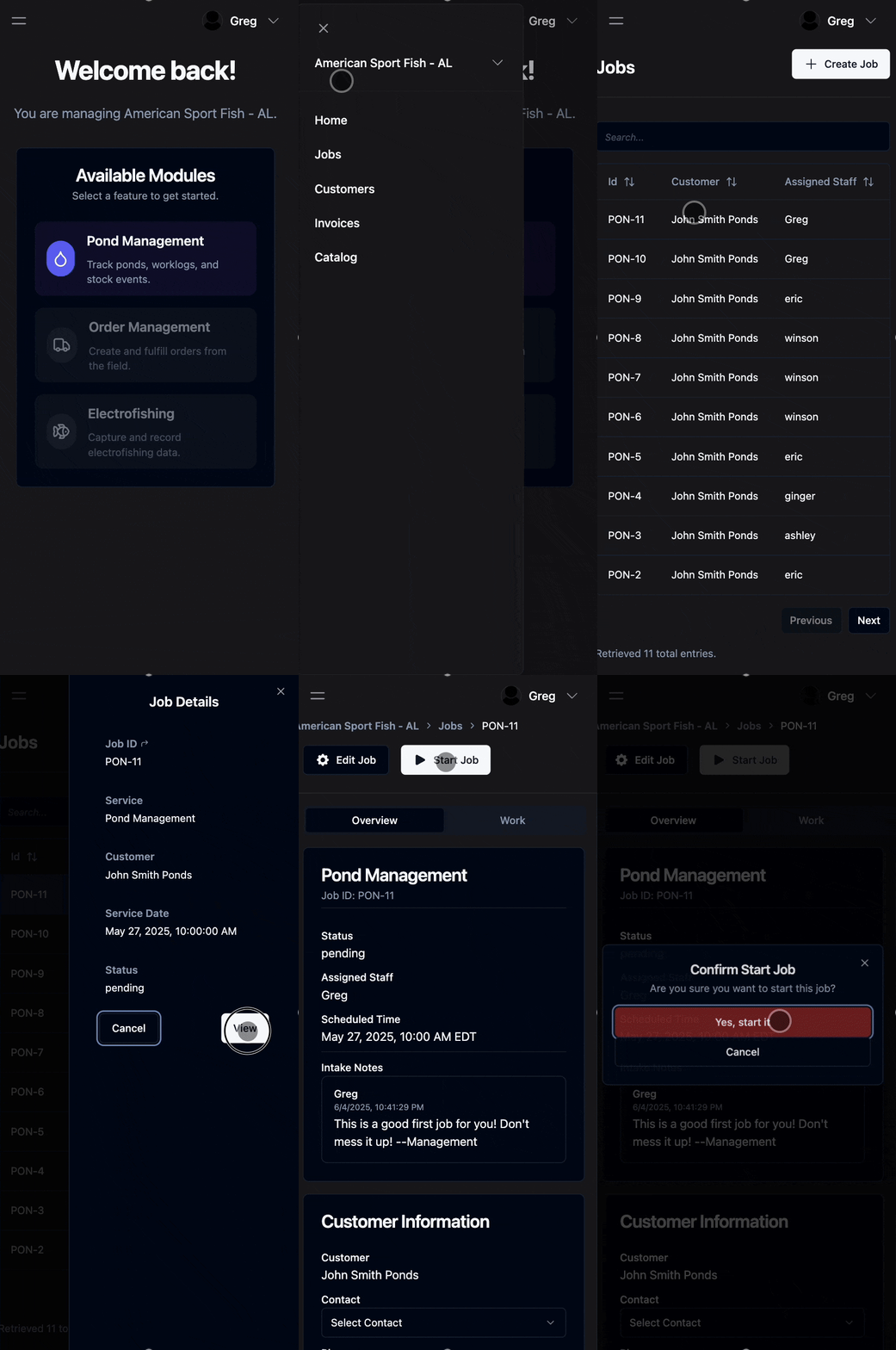
Accessing Your Job
When you're assigned a new job, it will appear in your Jobs section in the Zero Desk mobile app.
- Tap on the job in your dashboard
- Review notes and attachments
Tap Start Job once you're on-site
🛠 Step 2: Edit & Log Job Details
Field work happens fast — so logging updates needs to be quick, too.
Add status updates, progress notes, or upload photos as you go.
- Text Updates
- Locations
- Job Details
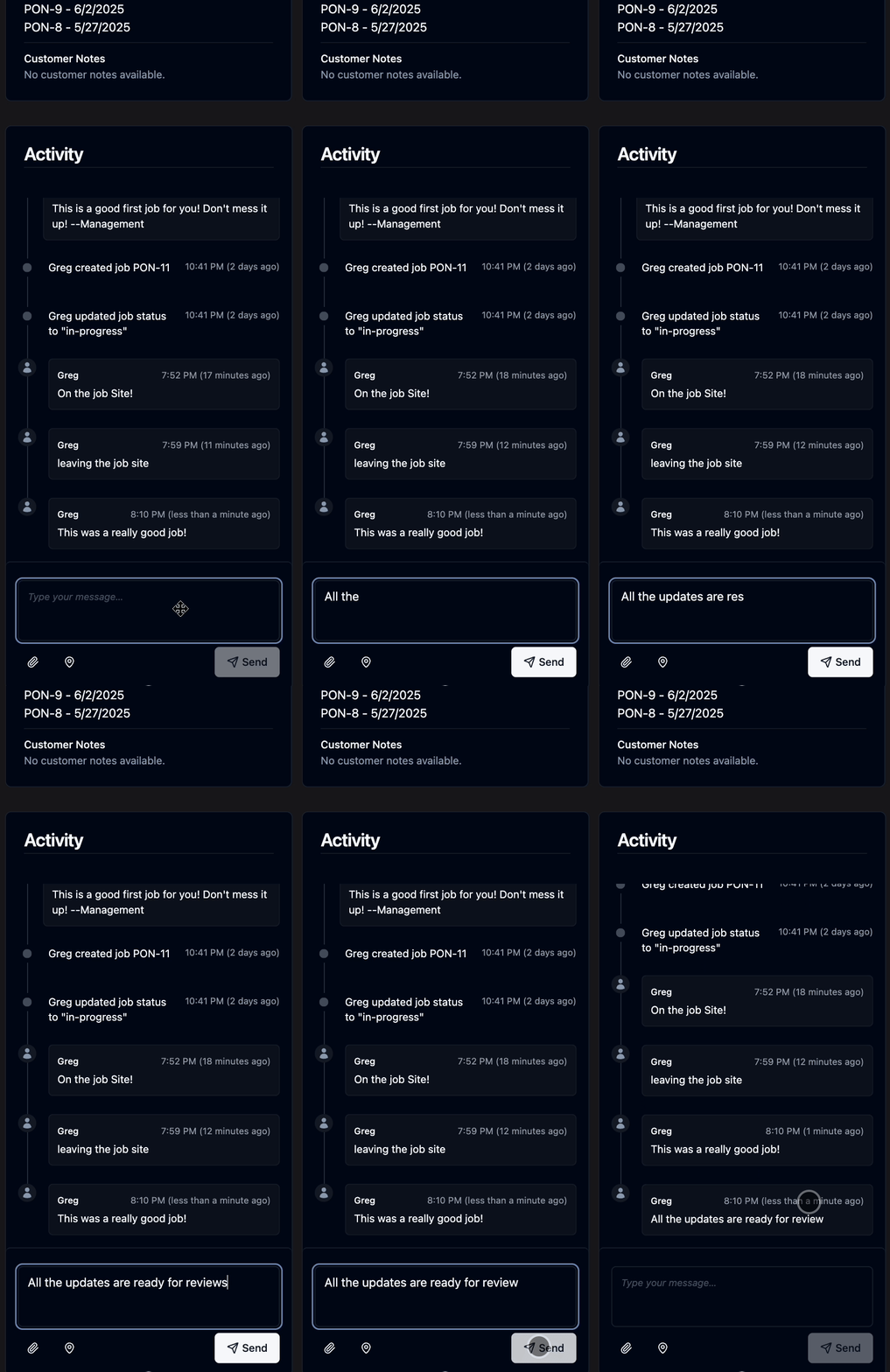
Provide Job Updates
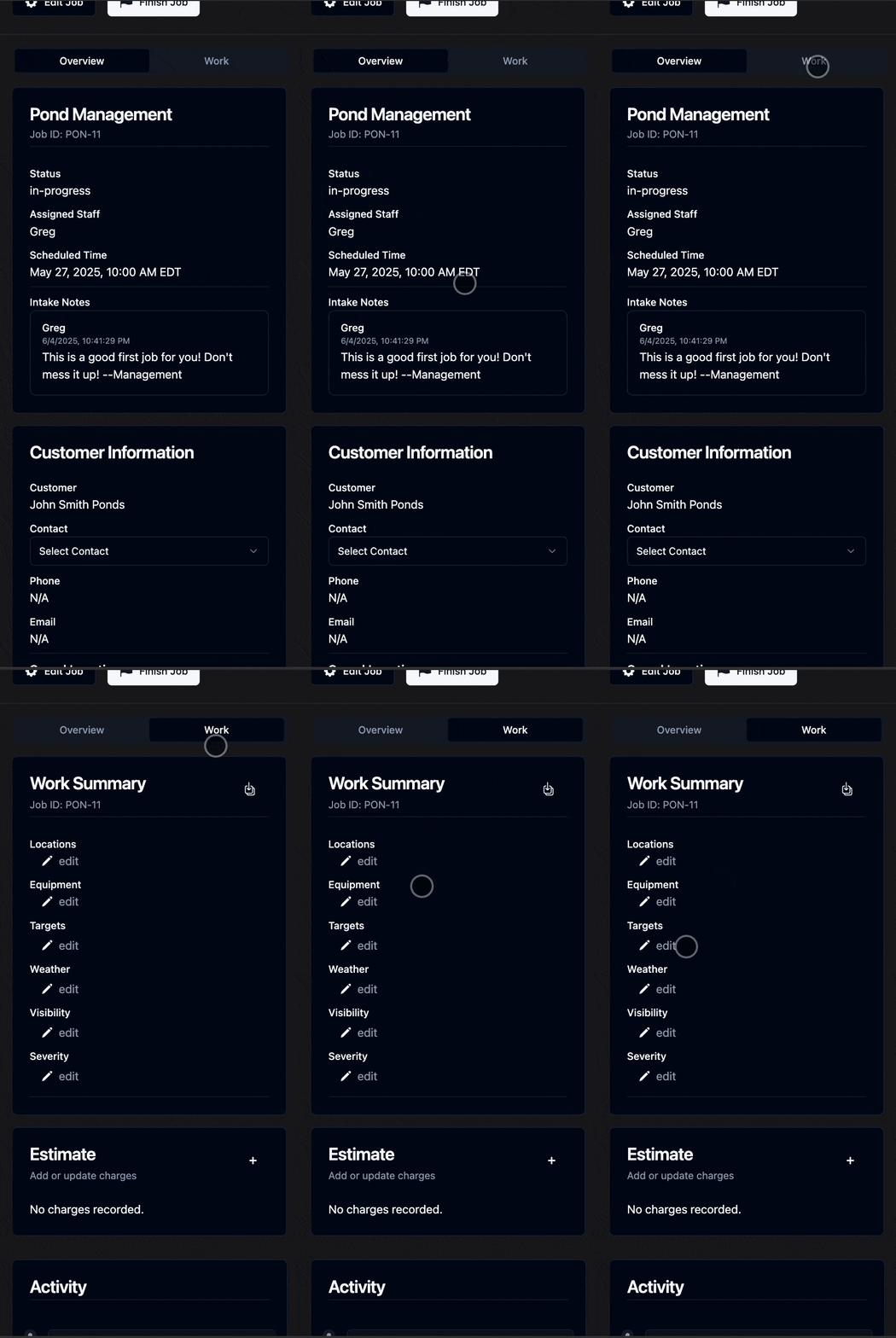
Go to the Work tab of a selected job
Scroll to the Activity Window
- Provide your updates, to include photos and locations.
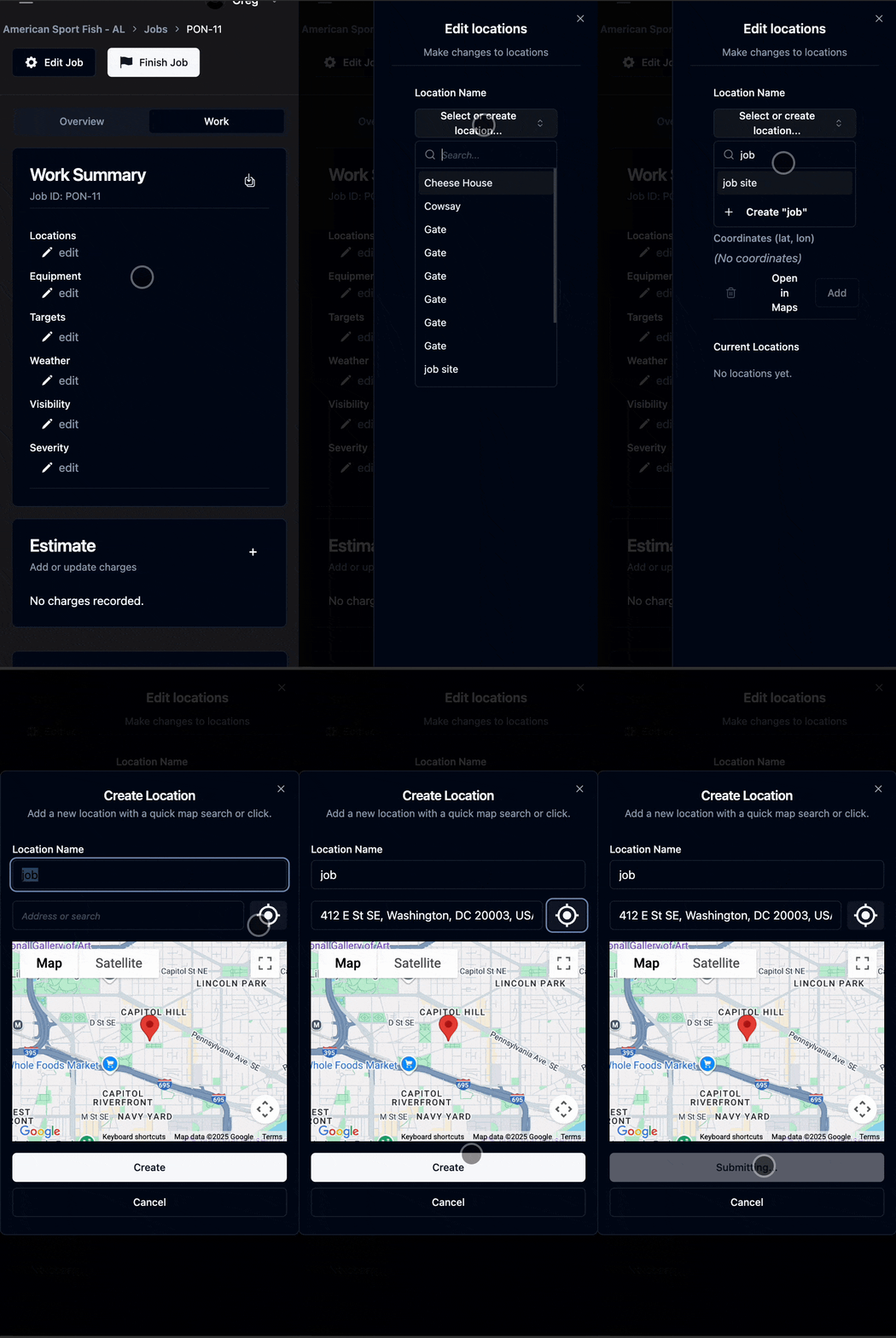
Add & Update Locations
Go to the Work tab of a selected job
Click on Edit Locations
- Update your location or select a saved one
Adjust Job Details
Go to the Work tab of a selected job
- Click on the job detail you want to edit
- Make your edits and save
Step 3: Create a Field Estimate
- Open the job and go to the Work tab
- Scroll down to the Estimates Section
- Click on the + button
- Choose a template or build your own line item
- Use Template
- Build Custom
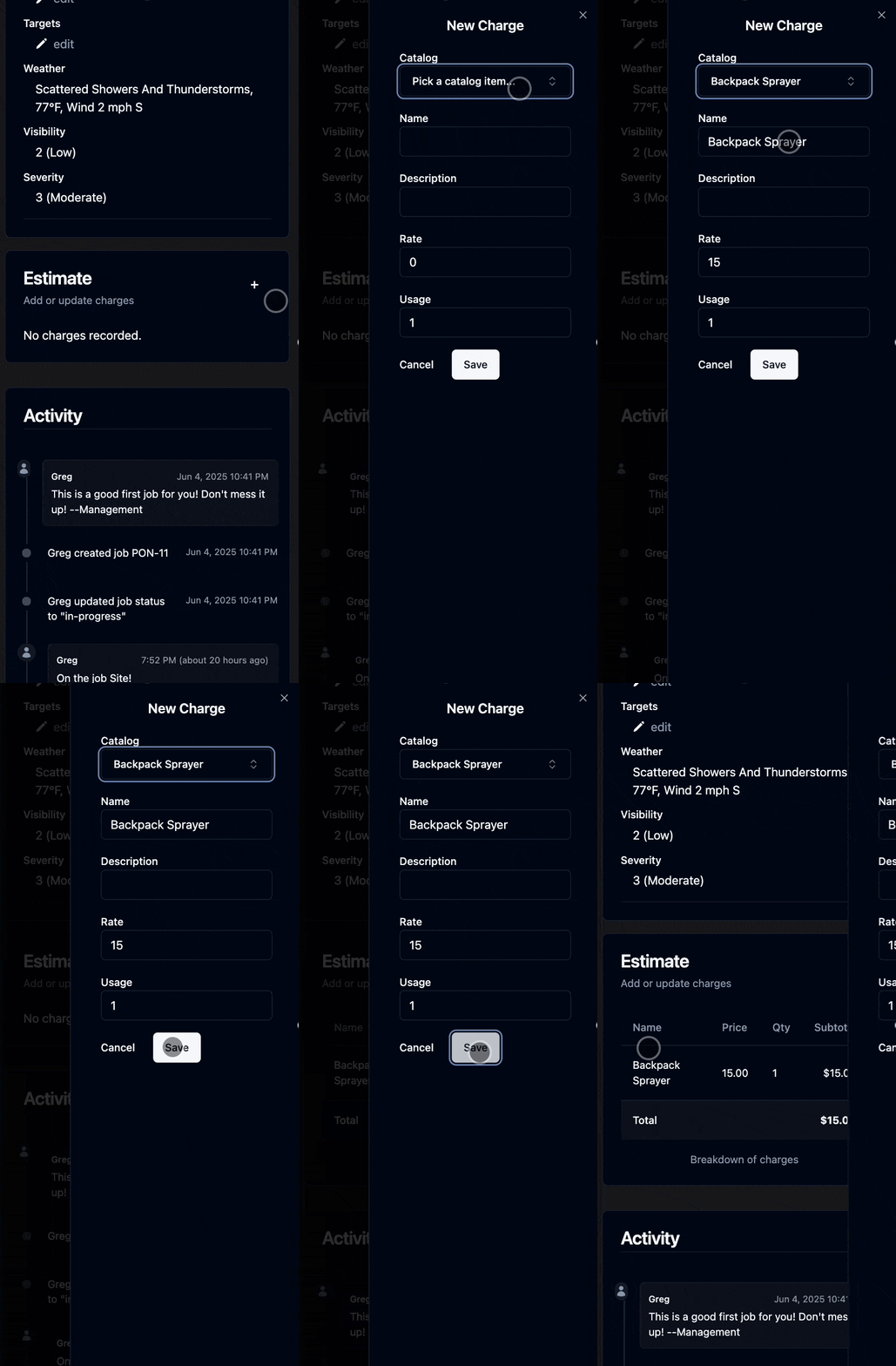
Use a Predefined Template
Templates are pre-filled with common services created by your organization.
- Select a pre-built line item
- Choose usage amount
- Tap save
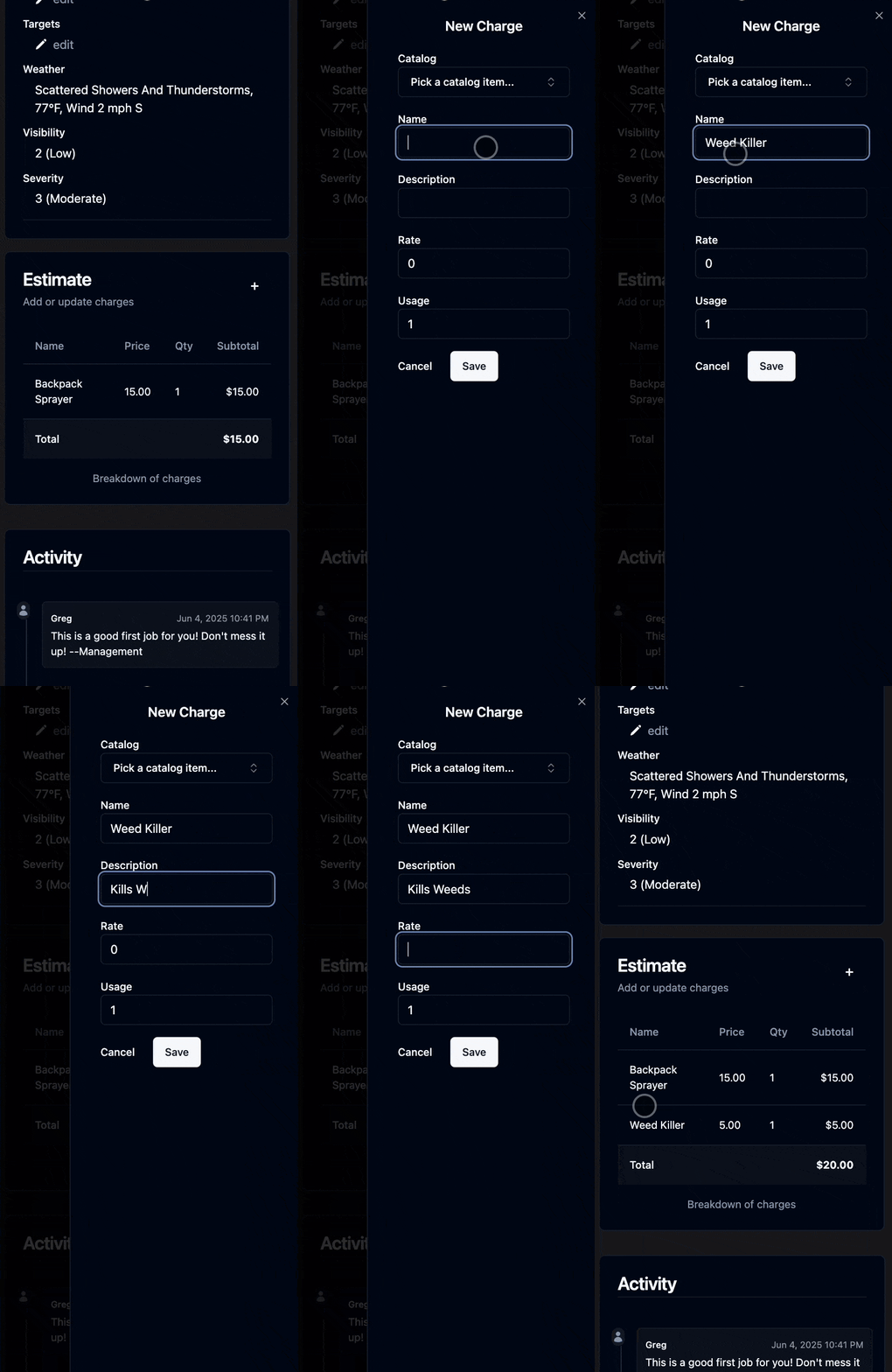
Build a Custom Estimate
You can create a custom line item estimate.
- Add the item name
- Add a description
- Add a rate in dollars
- Specify usage
- Tap save
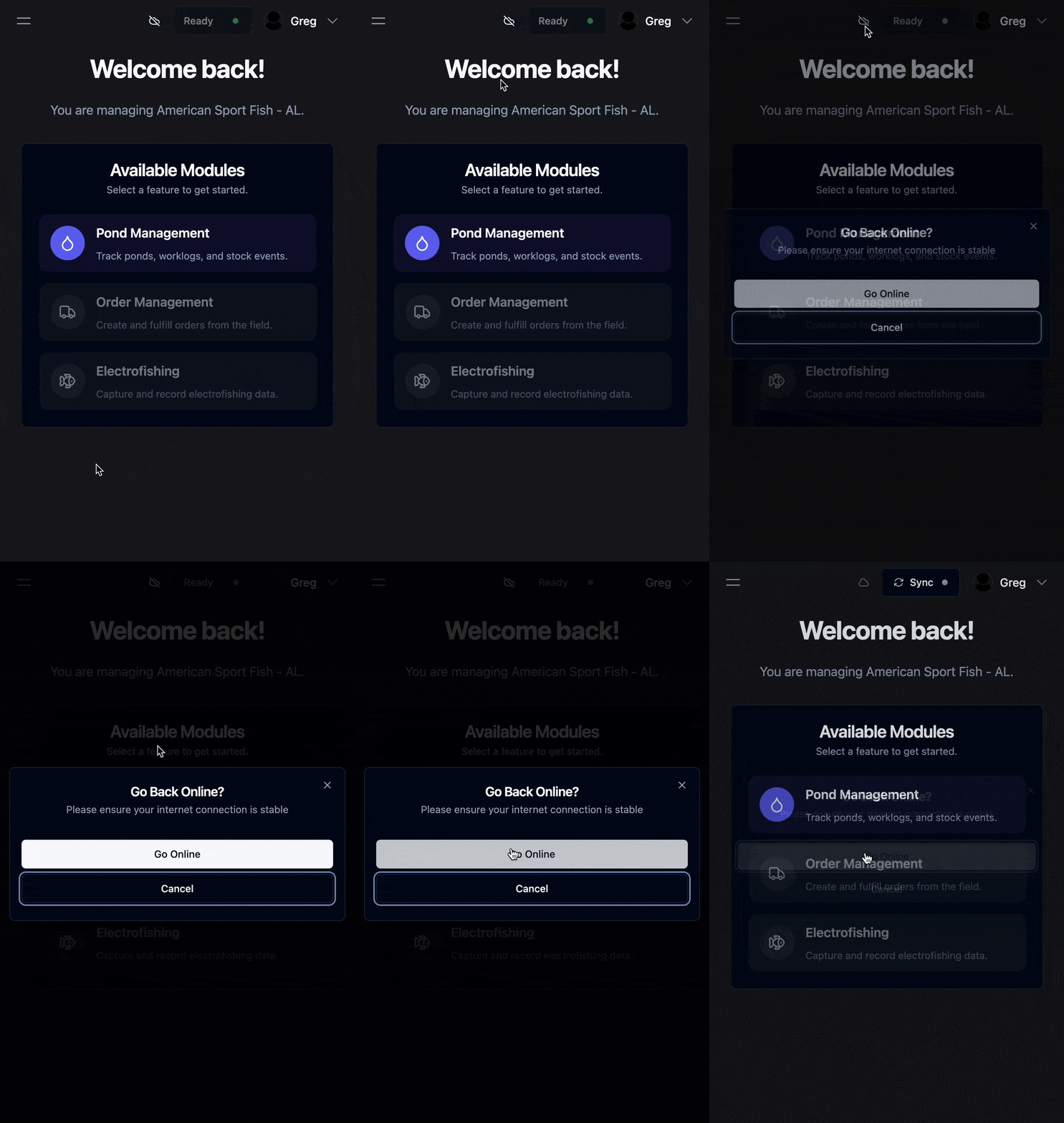
Step 4: Work Offline
With Zero Desk:
- Press the Sync button before heading out
- Log updates, submit forms, attach photos — even offline
- Data is saved locally and syncs once you're back online
- Offline Mode
- Back Online
Offline? No Problem.
Tap the Sync button before arriving at the site
- Continue working: forms, updates, photos — all offline
- Everything is saved locally to your device
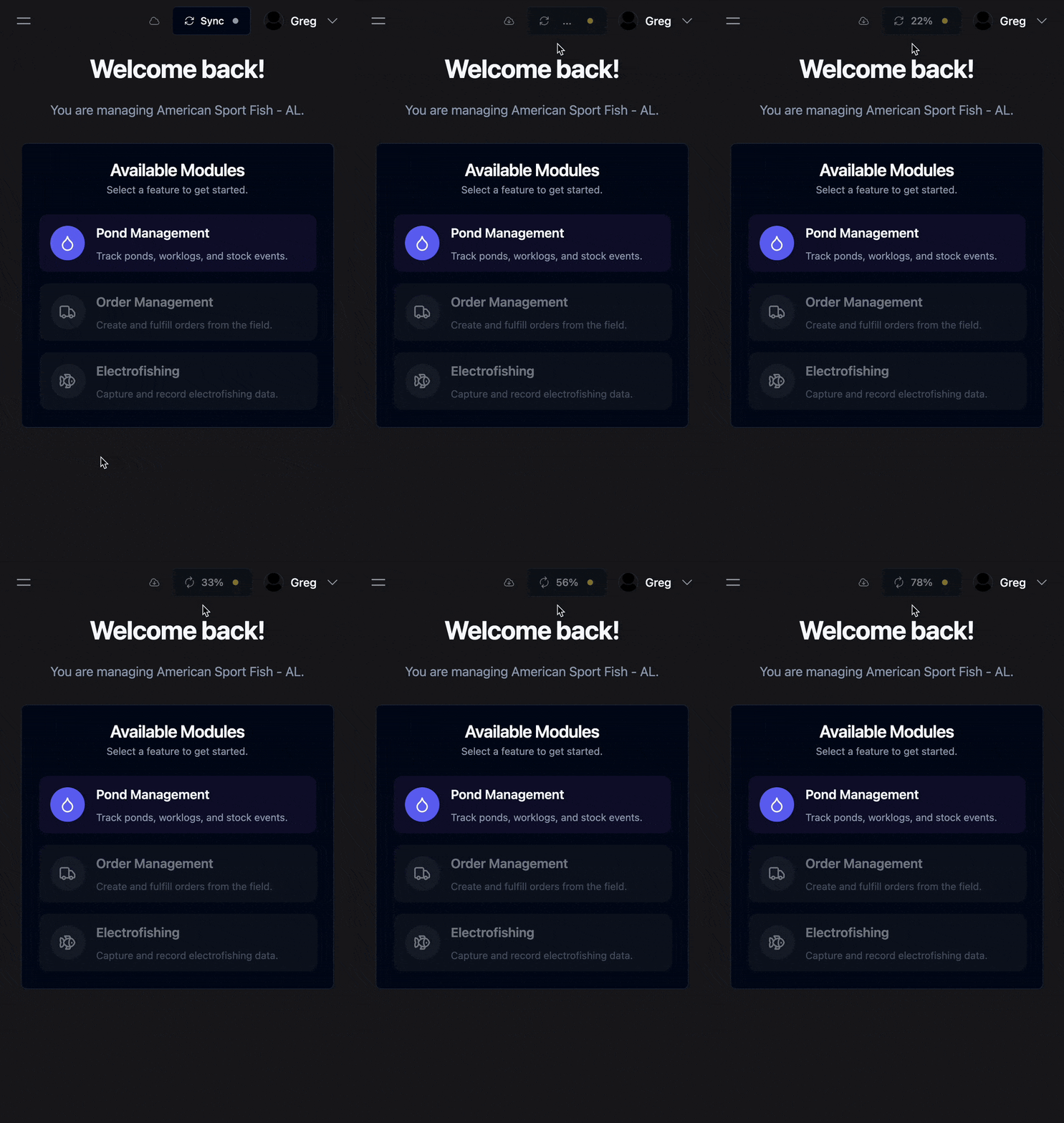
Regain Signal & Sync
- Once back in range, Zero Desk syncs automatically
- All logs, forms, and media are uploaded