Customer Management
Zero Desk makes it easy to manage customers, contacts, locations, notes, and job records — all in one place. Everything happens from a customer’s profile.
Adding a New Customer
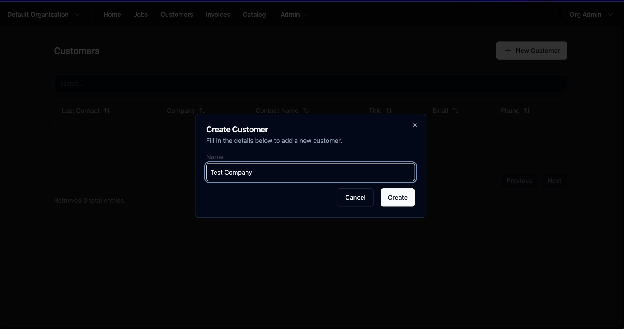
Step-by-Step: Add a Customer
- Click the Customers button in the top menu
- Tap “New Customer” to open the add form
- Enter the customer name and click Create
Editing Customer Details
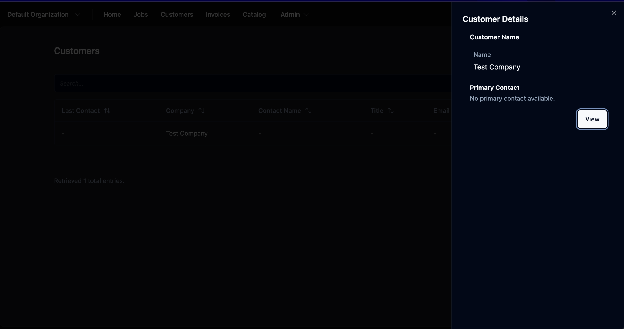
Edit and Manage Everything
- Click a customer’s name to open their quick view
- Select View to open their full profile
- From here, you can:
- Edit their basic info
- Add jobs and notes
- Add contacts and locations
Adding a Contact
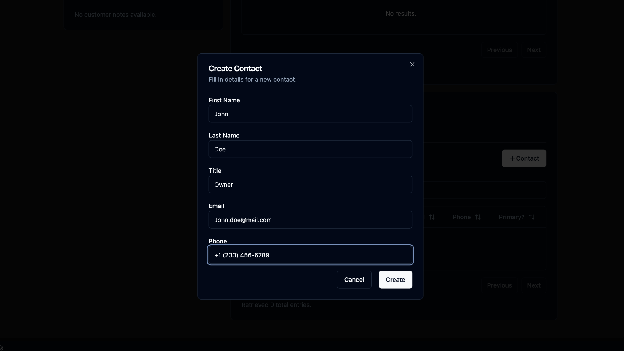
Step-by-Step: Add a Contact
- Click “+ Contact” in the customer’s profile
- Enter first and last name, title, email, and phone
- Click Create to save the contact
Adding a Location
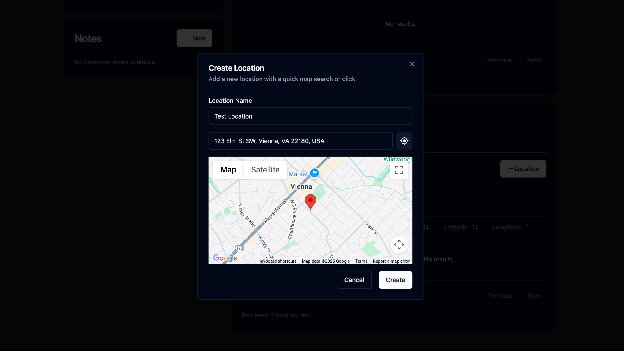
Step-by-Step: Add a Location
- Go to the customer profile’s Locations tab
- Click “Add Location”
- Enter a location name and address
- Or use the target icon to auto-fill your current location
- Click Create to save it
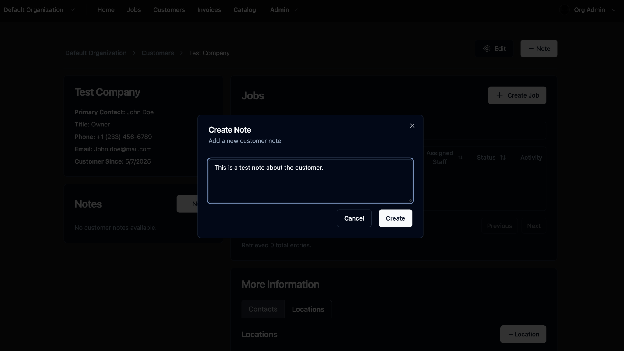
Adding Notes
Step-by-Step: Add Notes
- Click “Add Note” from the profile
- You’ll find it at the top or below the summary section
- Write your message (note: no formatting yet)
- Click Create to save it