Invoice Management
Zero Desk makes it simple to generate, edit, and manage invoices — including adding charges from jobs or directly from the catalog.
Creating an Invoice
Step-by-Step: Create an Invoice
- Go to Invoices – Click the Invoices tab in the top menu to view your current list
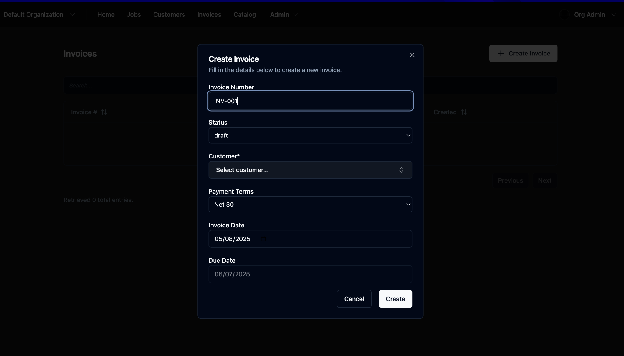
- Click “Create Invoice” – A pop-up window appears for invoice setup
- Fill in Invoice Details – Complete required fields and click Create to save
Editing or Deleting an Invoice
Edit or Delete an Existing Invoice
- Open the Invoice – Click an invoice row to view its details
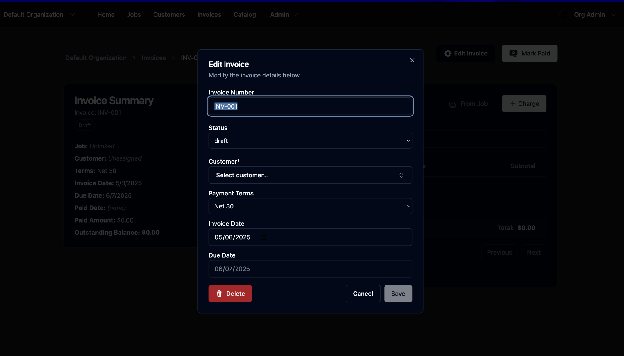
- Edit Invoice – Tap Edit Invoice and update any fields in the pop-up
- Click Save to apply changes
To Delete:
- Click the Trashcan icon inside the edit window
- ⚠️ This action is permanent
Adding Charges to an Invoice
Add Charges from Jobs or Catalog
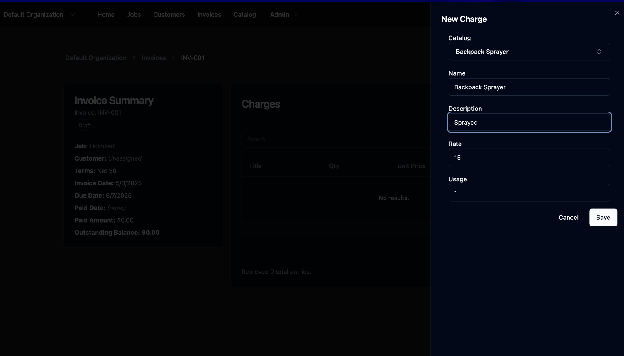
- Click “New Charge” to open the charge entry form
- Click From Job
- Select the charges you'd like to add
- Choose equipment from your catalog
- Or leave equipment blank to enter a custom charge
- Click “Save” – The charge is added to the invoice total