Report Template Guide
What Are Templates?
Templates are reusable bits of text that save time when creating reports:
- Snippets - Small text blocks for quick tailoring
- Page Templates - Pre-formatted pages with larger contents
- Report Templates - Complete, multi-page reports
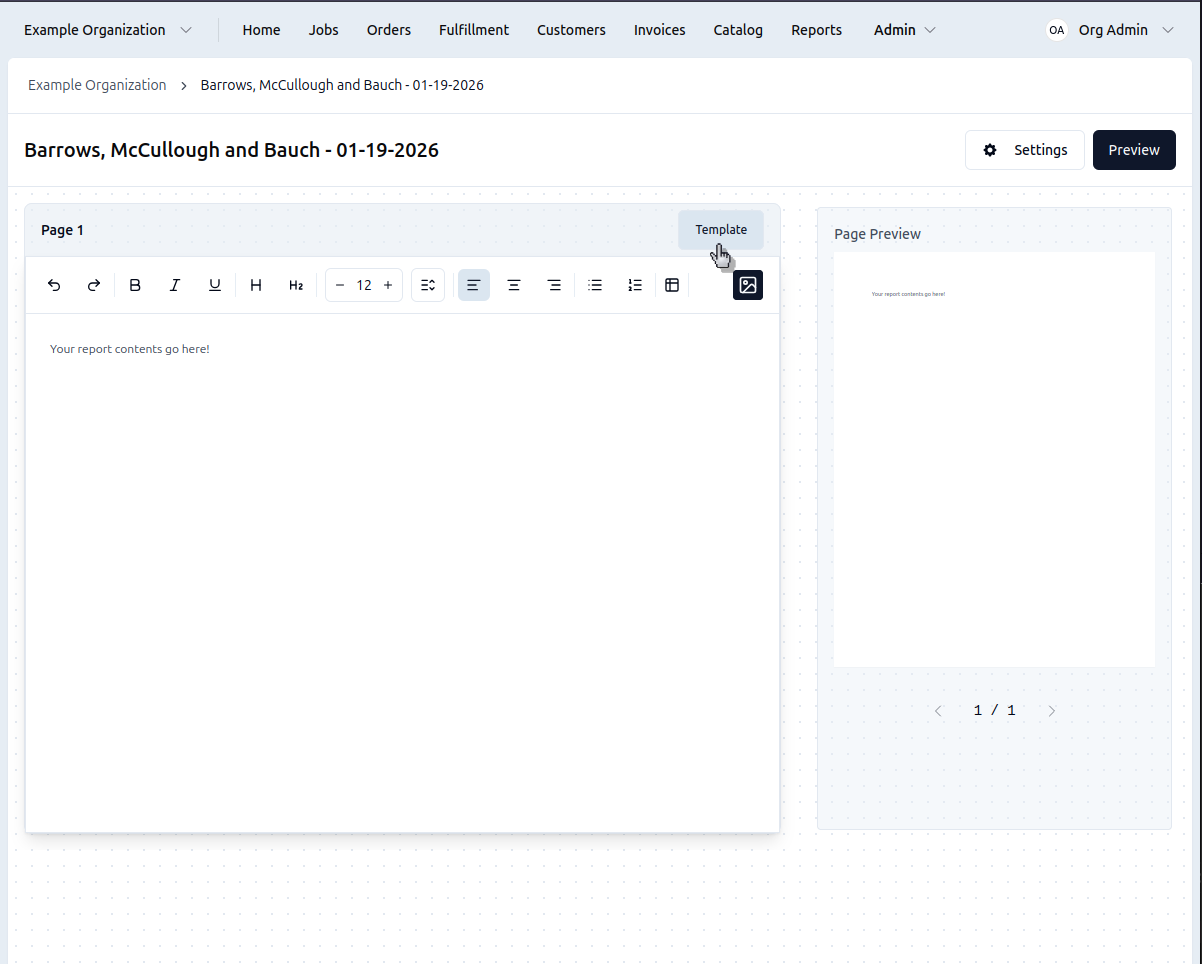
Snippets and Page Templates are available via the Template button in the Report Editor. Report Templates are accessible from the Manage Templates button on the Reports page.
Create a Template
- Open either a report or a report template
- Click Template above the right side of the editor
- Make sure you're on the Snippet tab for snippets, or the Page tab for page templates
- Type a search for the name you'd like to create and make sure one doesn't already exist
- Click Create next to your search
- Write whatever text you'd like in the snippet editor
- Search for and copy the template variables you'd like from the list on the right and paste them into your text where you'd like them
- Click the Savebutton on the lower right
- You can now click the Use button to insert your new snippet into this and any future report
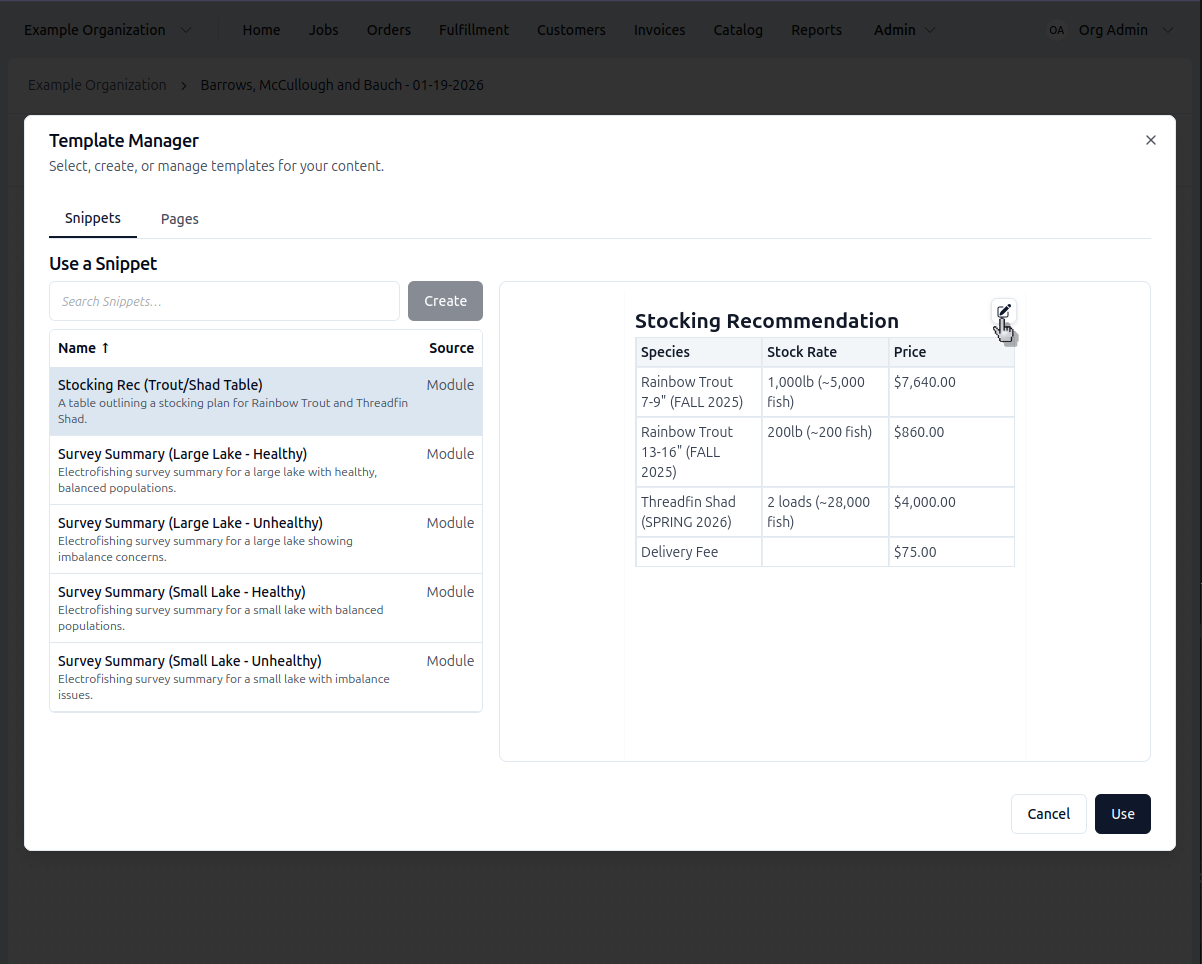
Clicking on a variable in the Variables sidebar will copy it to your clipboard. Then, you can paste it into your text anywhere you'd like it.
Editing a Template
- Open the template you'd like to edit
- Click Template above the right side of the editor
- Make sure you're on the Snippet tab for snippets, or the Page tab for page templates
- Search for the name of the template you'd like to edit
- In the preview pane, you'll see a Small Pencil Icon in the upper right corner
- Click the Small Pencil Icon to enter edit mode
- Make your changes in the snippet editor
- Click the Savebutton on the lower right
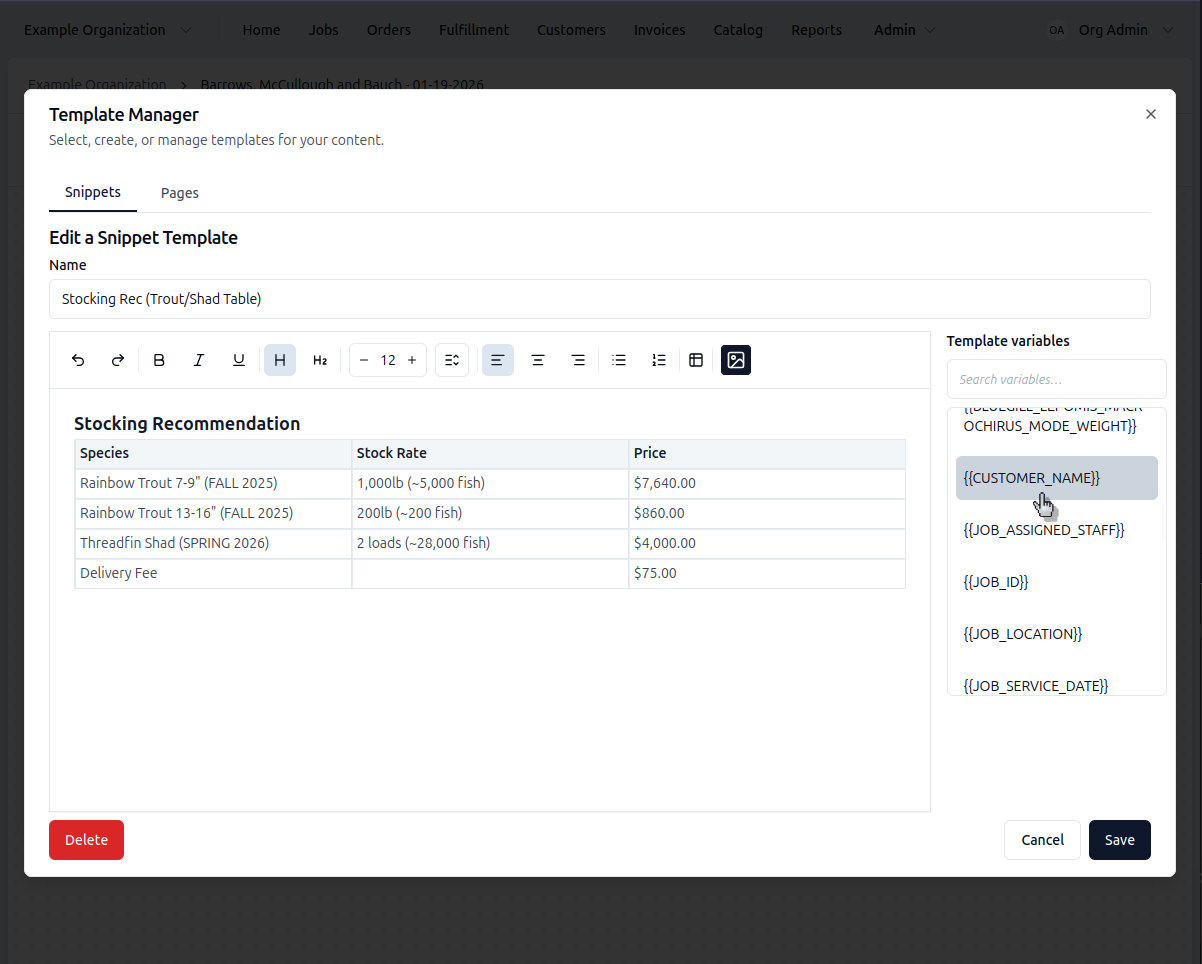
To delete a template, go into the editor and click the Delete button in the lower left.
Use Variables
Variables automatically fill in job data when you create a report.
Variables come in 2 sizes: small and large. Small variables can be used anywhere and will fit in-line with other text. Large variables can only be used in page templates and report templates and require their own line with no text on either side.
Small variables include things like:
{{CUSTOMER_NAME}}- Customer name{{JOB_ID}}- Job number{{JOB_SERVICE_DATE}}- Survey date{{LARGEMOUTH_BASS_MICROPTERUS_SALMOIDES_COUNT}}- Bass count
Large variables include things like:
{{FINDINGS}}- Renders as a bullet list of findings{{RECOMMENDATIONS}}- Renders as a bullet list of recommendations{{TARGETS}}- List of targets
You can preview the variables used in your snippet and page templates when you go to use them in a report. The full text, with the templates applied will show in the preview pane, above the Use button
See the full variable reference below.
Template Details
More information about template features and management.
Complete Variable Reference
Here's the full list of variables you can use in templates:
Common Fields
{{REPORT_NAME}}- Report name{{JOB_ID}}- Job identifier (e.g., EFS-9){{CUSTOMER_NAME}}- Customer organization name{{JOB_SERVICE_DATE}}- Survey date{{JOB_ASSIGNED_STAFF}}- Staff member name{{JOB_LOCATION}}- Site location{{WEATHER}}- Weather description
Findings, Recommendations, and Targets (large templates)
Must be on their own line without text on either side:
{{FINDINGS}}- Renders as bullet list{{RECOMMENDATIONS}}- Renders as bullet list{{TARGETS}}- List of targets
Global Relative Weight Metrics
{{MIN_RELATIVE_WEIGHT}}- Minimum Wr (or "N/A"){{AVG_RELATIVE_WEIGHT}}- Average Wr (or "N/A"){{MAX_RELATIVE_WEIGHT}}- Maximum Wr (or "N/A")
Water Quality Metrics
{{WATER_VISIBILITY}}- Visibility in feet{{WATER_SEVERITY}}- Severity rating (1-5){{WATER_ALKALINITY}}- Alkalinity in ppm{{WATER_TEMPERATURE}}- Temperature in °F
Species-Specific Variables
Each species in your organization's catalog has these metrics available. Replace SPECIES_NAME with the species identifier (e.g., LARGEMOUTH_BASS_MICROPTERUS_SALMOIDES):
Count:
-
{{SPECIES_NAME_COUNT}}
Length Metrics (mm):
-
{{SPECIES_NAME_MIN_LENGTH}} -
{{SPECIES_NAME_AVG_LENGTH}} -
{{SPECIES_NAME_MAX_LENGTH}} -
{{SPECIES_NAME_MEDIAN_LENGTH}} -
{{SPECIES_NAME_MODE_LENGTH}}
Weight Metrics (lb):
-
{{SPECIES_NAME_MIN_WEIGHT}} -
{{SPECIES_NAME_AVG_WEIGHT}} -
{{SPECIES_NAME_MAX_WEIGHT}} -
{{SPECIES_NAME_MEDIAN_WEIGHT}} -
{{SPECIES_NAME_MODE_WEIGHT}}
Relative Weight (Wr):
-
{{SPECIES_NAME_MIN_RELATIVE_WEIGHT}} -
{{SPECIES_NAME_AVG_RELATIVE_WEIGHT}} -
{{SPECIES_NAME_MAX_RELATIVE_WEIGHT}}
Common examples:
LARGEMOUTH_BASS_MICROPTERUS_SALMOIDESBLUEGILL_LEPOMIS_MACROCHIRUSSHELLCRACKER_LEPOMIS_MICROLOPHUSCRAPPIE_POMOXIS_SPP
The exact list depends on what species your organization has in its catalog.
Troubleshooting
Make sure the job data field has a value before generating the report. Empty fields result in blank or N/A substitutions.